
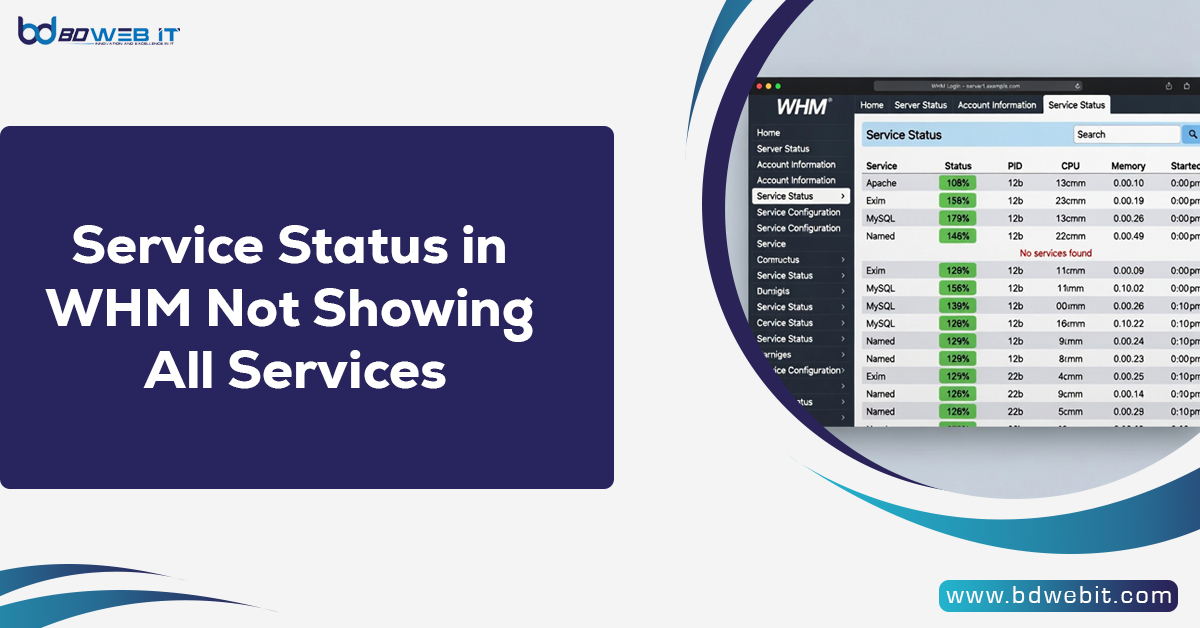
If Service Status in WHM is not showing all services, the most common reasons are disabled monitoring in Service Manager, inactive services, firewall restrictions, broken chkservd configuration, or corrupted system status files. In most cases, the issue can be resolved by verifying service monitoring settings, restarting cPanel services, rebuilding the service status cache, or repairing the chkservd configuration from SSH.
Now let’s explore this issue in detail and understand how to troubleshoot it properly.
What Is Service Status in WHM?
WebHost Manager (WHM) is the administrative dashboard used by hosting providers and server administrators to manage cPanel-based servers. Inside WHM, the Service Status page displays the current status of critical server services, such as:
- Apache
- MySQL/MariaDB
- Exim
- Dovecot
- FTP
- cPanel service
- DNS (named)
This section depends on a monitoring daemon called chkservd, which constantly checks whether these services are running.
If some services are missing from the Service Status list, it usually indicates a configuration or monitoring issue rather than a server failure.
Common Reasons Why Service Status Is Not Showing All Services
1. Service Monitoring Disabled in Service Manager
Inside WHM:
WHM → Service Configuration → Service Manager
If monitoring is unchecked for certain services, they will not appear in Service Status.
Fix:
- Go to Service Manager.
- Enable “Monitor” for missing services.
- Click Save.
- Restart chkservd.
2. Service Is Not Installed or Running
Sometimes services don’t appear because they are not installed or are disabled.
For example:
- FTP server disabled
- DNS not installed
- Mail service turned off
You can verify this via SSH:
Bash
systemctl status service_name
If the service is inactive, restart it:
Bash
systemctl restart service_name
3. chkservd Configuration Issues
WHM relies on chkservd (cPanel Service Manager daemon) to display services. If chkservd is corrupted or misconfigured, services may disappear.
Check its status:
Bash
systemctl status chkservd
Restart it:
Bash
/scripts/restartsrv_chkservd
If the issue persists, rebuild configuration:
Bash
/scripts/chkservd --auto
4. Firewall Blocking Monitoring
If you are using CSF or another firewall, internal port checks may fail.
For example:
- Apache (port 80/443)
- MySQL (port 3306)
- SMTP (port 25)
Make sure these ports are allowed in:
- CSF configuration
- iptables
- Cloud firewall rules (AWS, DigitalOcean, etc.)
5. Corrupted cPanel Cache or Update Issues
Sometimes, after updating cPanel, Service Status doesn’t refresh properly.
Run:
Bash
/scripts/upcp --force
Then restart:
Bash
/scripts/restartsrv_cpsrvd
This rebuilds system status files and refreshes service display.
6. Permission Issues or Disk Space Problems
If your server has:
- Full disk
- Incorrect permissions
- Broken /var partition
Service Status may not load correctly.
Check disk usage:
Bash
df -h
If disk usage is 100%, free space is immediately.
Step-by-Step Troubleshooting Guide
Here’s a professional checklist you can follow:
Step 1: Check Service Manager
Enable monitoring for all required services.
Step 2: Restart chkservd
Bash
/scripts/restartsrv_chkservd
Step-3: Restart All Core Services
Bash
/scripts/restartsrv_httpd
/scripts/restartsrv_mysql
/scripts/restartsrv_exim
/scripts/restartsrv_dovecot
Step 4: Force cPanel Update
Bash
/scripts/upcp --force
Step 5: Check Error Logs
Look at:
Code
/var/log/chkservd.log
/usr/local/cpanel/logs/error_log
These logs often reveal why services aren’t being detected.
Advanced Fix (If Services Still Not Showing)
If the problem continues, try rebuilding the service monitoring configuration:
Bash
rm -f /var/run/chkservd.pid
/scripts/chkservd --auto
/scripts/restartsrv_chkservd
Then reboot the server:
Bash
reboot
When the Problem Is Related to Systemd
Modern Linux servers use systemd. Sometimes systemd services are not linked correctly.
Run:
Bash
systemctl daemon-reload
Then restart services again.
How This Impacts Hosting Businesses
If you are running a hosting company or managing multiple cPanel accounts, missing services in WHM can:
- Hide server problems
- Delay in issue detection
- Cause downtime
- Impact client trust
For companies offering shared hosting, VPS hosting, or reseller hosting, proper service monitoring is critical.
Preventing This Issue in the Future
Here are the best practices:
1. Keep cPanel Updated
Regular updates prevent compatibility problems.
2. Monitor via External Tools
Use external monitoring, such as:
- Uptime monitoring
- Port monitoring
- Server health dashboards
3. Regular Log Audits
Review logs weekly for early warning signs.
4. Avoid Manual Service Modifications
Don’t disable services directly via SSH unless necessary.
Frequently Asked Questions
Why is Apache not showing in WHM Service Status?
Because:
- Monitoring is disabled
- Apache is not running
- chkServd is not detecting it
- Firewall blocking port 80
Why does Service Status show only some services?
Most commonly due to Service Manager configuration.
Does restarting the server fix it?
Sometimes yes, but only if it’s a temporary cache or daemon issue.
Final Thoughts
When Service Status in WebHost Manager is not showing all services, it’s rarely a serious system failure. In most cases, the issue is related to disabled monitoring, chkservd configuration problems, firewall restrictions, or outdated service status files.
By systematically checking Service Manager settings, restarting chkservd, verifying firewall rules, and rebuilding cPanel services, you can resolve the issue quickly and restore full service visibility.
If you manage multiple servers or provide hosting services in regions like Bangladesh or internationally, keeping WHM Service Status accurate ensures better uptime, improved client satisfaction, and smoother server management.