
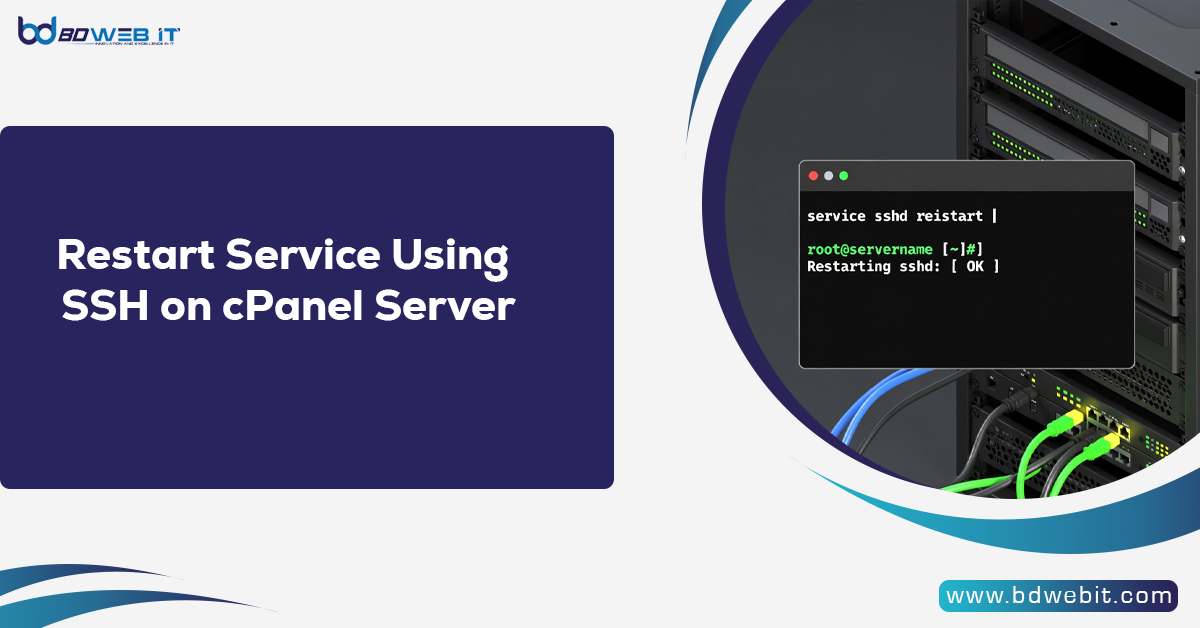
Restart a service using SSH on a cPanel server means securely connecting to your server via Secure Shell (SSH) and using command-line instructions to stop, start, or restart system services such as Apache, MySQL, Exim, or cPanel-related services. This method is faster, more reliable, and often necessary when troubleshooting server performance issues, configuration changes, or service failures on a Linux-based hosting environment running cPanel & WHM.
What is SSH and Why Use It?
SSH (Secure Shell) is a secure protocol that allows administrators to access and manage remote servers through a command-line interface. Instead of using graphical tools like WHM, SSH gives you direct server-level control.
On a cPanel & WHM server, SSH is commonly used to:
- Restart Apache (httpd)
- Restart MySQL/MariaDB
- Restart Exim mail server
- Restart cPanel services
- Troubleshoot server errors
- Apply configuration updates
SSH is especially useful when:
- WHM is not accessible
- A service crashes
- You need faster administrative control
- You are automating server management tasks
Requirements Before Restarting Services
Before proceeding, ensure:
- You have root access to the server.
- SSH is enabled.
- You know the correct service name.
- You are using a Linux-based OS (such as AlmaLinux, CloudLinux, or CentOS).
Step 1: Connect to Your cPanel Server via SSH
You can connect using:
- PuTTY (Windows)
- Terminal (Mac/Linux)
- Built-in SSH from hosting panel
Basic SSH connection command:
Bash
ssh root@your-server-ip
Example:
Bash
ssh [email protected]
After entering the command:
- Type your password
- Or use SSH key authentication
Once logged in, you will see something like:
Bash
[root@server ~]#
This means you are logged in as root and ready to manage services.
Step 2: Understanding Service Management Commands
Most modern cPanel servers use systemd. The standard command to restart a service is:
Bash
systemctl restart servicename
Alternative older command:
Bash
service servicename restart
For cPanel servers, both often work.
Restart Common Services on cPanel Server
Below are the most commonly restarted services and their SSH commands.
1. Restart Apache (HTTP Server)
Apache is responsible for serving websites.
Service name: httpd
Bash
systemctl restart httpd
Or:
Bash
service httpd restart
If Apache fails, check status:
Bash
systemctl status httpd
2. Restart MySQL / MariaDB
Database services power WordPress, WooCommerce, Shopify integrations, and other applications.
Service name: mysqld (or mariadb)
Bash
systemctl restart mysqld
Or:
Bash
systemctl restart mariadb
Check status:
Bash
systemctl status mysqld
3. Restart Exim (Mail Server)
Exim handles email sending on cPanel servers.
Bash
systemctl restart exim
Check status:
Bash
systemctl status exim
4. Restart cPanel Service
If WHM or cPanel interface stops working:
Bash
/scripts/restartsrv_cpsrvd
To restart all cPanel services:
Bash
/scripts/restartsrv_cpsrvd --force
5. Restart FTP Service (Pure-FTPd)
Bash
systemctl restart pure-ftpd
6. Restart cPHulk (Security Service)
Bash
systemctl restart cphulkd
7. Restart Firewall (CSF)
If you use ConfigServer Security & Firewall:
Bash
csf -r
How to Check Service Status Before Restarting
Before restarting, it is good practice to check service status:
Bash
systemctl status servicename
Example:
Bash
systemctl status httpd
This shows:
- Whether service is active
- Error logs
- Recent activity
Safe Way to Restart Services
Restarting services on production servers can temporarily affect users. Follow these best practices:
1. Restart During Low Traffic
Avoid peak traffic hours.
2. Check Error Logs
Always investigate logs before repeated restarts.
Apache logs:
Bash
tail -f /var/log/httpd/error_log
MySQL logs:
Bash
tail -f /var/log/mysqld.log
3. Use Graceful Restart for Apache
To avoid interrupting active connections:
Bash
apachectl graceful
When Should You Restart a Service?
You should restart services when:
- Configuration files are updated
- Server memory overload occurs
- Website returns 500 error
- Database connection fails
- Email sending stops
- Service crashes unexpectedly
However, restarting is not always the solution. If a service repeatedly fails, deeper troubleshooting is needed.
Restart Services Using WHM (Alternative Method)
If SSH feels complex, you can restart services via:
WHM → Home → Restart Services
But SSH is preferred when:
- WHM is down
- Server is under heavy load
- You need faster control
Troubleshooting If Restart Fails
If a service does not restart:
1. Check Logs
Bash
journalctl -xe
2. Check Configuration Syntax
For Apache:
Bash
apachectl configtest
For Exim:
Bash
exim -bV
3. Check Disk Space
df -h
Low disk space can prevent services from restarting.
Security Tips While Using SSH
- Disable password login and use SSH keys.
- Change default SSH port.
- Use firewall protection.
- Limit root login.
- Enable cPHulk protection.
Automating Service Restart
Advanced administrators sometimes use cron jobs or monitoring tools to auto-restart failed services.
Example cron entry:
Bash
*/5 * * * * systemctl restart httpd
⚠ Warning: Do not automate restarts without understanding the root cause. It can hide serious server issues.
Conclusion
Restart service using SSH on a cPanel server is a fundamental server management skill. It provides direct control, faster troubleshooting, and reliable service recovery compared to graphical tools. Whether you’re managing email servers, eCommerce hosting, or business websites, knowing how to safely restart Apache, MySQL, Exim, and other core services ensures optimal server performance and uptime.
For hosting providers and server administrators, mastering SSH commands is essential for maintaining stable, secure, and high-performing cPanel servers.
If you’re running eCommerce stores, high-traffic blogs, or SMTP servers, proactive service monitoring combined with proper SSH management can dramatically reduce downtime and improve overall server reliability.