


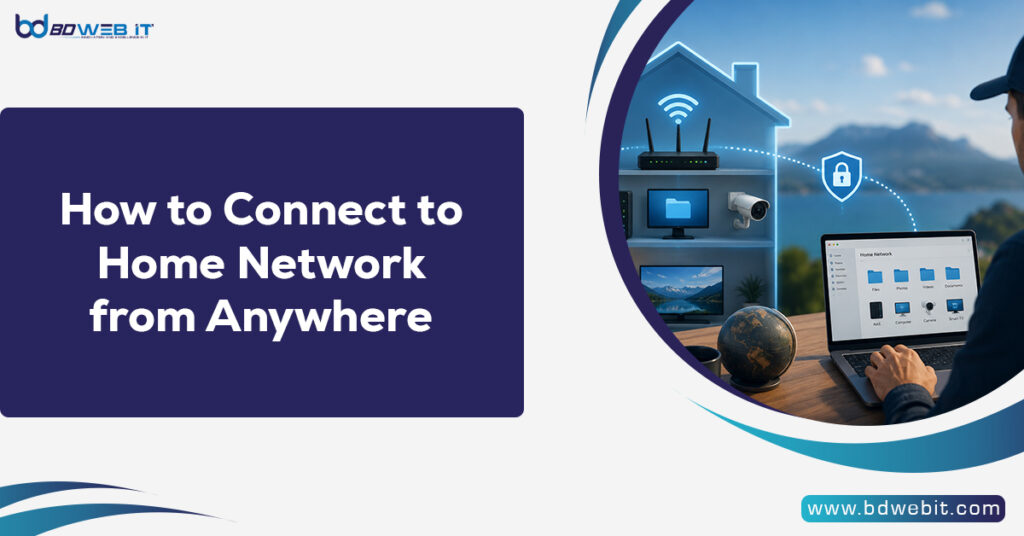
If you want to connect to your home network from anywhere, the most secure and reliable method is to use a Virtual Private Network (VPN). When using a VPN, you get connected securely to your home network, which allows you to get remote access to files, computers, smart devices, security cameras, and anything else on your network from any place, as if you are right at home. You can also choose other methods, such as Remote Desktop, etc., but a VPN is considered to be the best choice.
Learn how to connect to your home network from anywhere using VPNs, remote desktop tools, Tailscale, and secure remote access methods. Complete step-by-step guide.
Why Connect to Your Home Network Remotely?
It is becoming essential to have remote access to your home network since people spend much of their time working from home and controlling various smart devices. Some of the ways that you can utilize remote access include:
- Access files stored on a home server or NAS.
- Control smart home devices remotely.
- Monitor security cameras.
- Manage network equipment.
- Use remote desktop connections.
- Stream media from home storage.
- Troubleshoot family computers remotely.
Remote network access is convenient and flexible, whether you are traveling, working in a cafe, or visiting your relatives.
Methods to Connect to Home Network from Anywhere
There are several ways to establish a remote connection to your home network.
1. Use a VPN (Recommended)
The use of a VPN is more recommended because it offers excellent security by encrypting all information being exchanged from your computer to the home network.
How It Works
The VPN server is set up on your router, dedicated server, or personal computer. As soon as you are out of your house, you log into the server by using the client application.
Once connected, your device receives an IP address from your home network and can access resources securely.
Benefits
- High security
- Encrypted traffic
- Access to all network devices
- Works on smartphones, tablets, and computers
- Protects data on public Wi-Fi
Popular VPN Solutions
- WireGuard
- OpenVPN
- Tailscale
- SoftEther VPN
- ZeroTier
WireGuard happens to be one of the most common choices because of the speed and simplicity of configuration.
2. Use Remote Desktop Software
In case all that you need is to control the computer from your home, then a remote desktop program could suffice.
Popular options include:
- Microsoft Remote Desktop
- AnyDesk
- TeamViewer
- Chrome Remote Desktop
These services allow you to view and control your home computer from another device.
Advantages
- Easy setup
- No advanced networking knowledge required
- Works across different operating systems
Limitations
- Only provides access to specific computers
- Does not offer full network access
3. Use Tailscale
Tailscale has become one of the easiest methods for connecting to home networks remotely.
It uses WireGuard technology and creates a private mesh network between your devices.
Why People Love Tailscale
- Extremely easy setup
- No complicated port forwarding
- Strong security
- Works behind most firewalls
- Available for all major desktop and mobile operating systems.
For beginners, Tailscale can often be the simplest way to gain secure remote access.
4. Configure Port Forwarding
Port forwarding allows external traffic from the internet to reach devices on your home network.
For example, you could forward:
- Remote Desktop ports
- VPN ports
- Security camera ports
- NAS access ports
Risks of Port Forwarding
While effective, port forwarding can expose services directly to the internet.
Potential risks include:
- Unauthorized access attempts
- Brute-force attacks
- Security vulnerabilities
If you use port forwarding, always:
- Enable strong passwords
- Use two-factor authentication
- Keep software updated
- Restrict access whenever possible
5. Use Cloud-Based Remote Access Services
Many modern devices offer cloud connectivity that eliminates the need for VPNs and port forwarding.
Examples include:
- Cloud-enabled NAS systems
- Smart home platforms
- Security camera services
- Home automation hubs
These services connect through the vendor’s cloud infrastructure, making remote access simple for non-technical users.
Requirements for Remote Home Network Access
Before connecting remotely, you’ll typically need:
Stable Internet Connection
Your home internet connection should remain active and reliable.
Public IP Address
Most home networks use a public IP address assigned by the internet service provider.
Dynamic DNS (DDNS)
Many ISPs change IP addresses periodically.
Dynamic DNS services automatically update your domain name whenever your IP address changes.
Popular DDNS providers include:
- No-IP
- Dynu
- Duck DNS
With DDNS, you can connect using a memorable hostname instead of tracking your IP address.
Secure Authentication
Always use:
- Strong passwords
- Two-factor authentication
- Encryption
- Updated firmware
Security should never be overlooked when enabling remote access.
Step-by-Step: Connect Using a VPN
Step 1: Choose a VPN Solution
Select a VPN server solution such as:
- WireGuard
- OpenVPN
- Tailscale
Step 2: Install the VPN Server
Install the VPN server on:
- Your router
- A home server
- A Raspberry Pi
- A dedicated computer
Step 3: Configure Port Forwarding
If necessary, forward the VPN port from your router to the VPN server.
Step 4: Create VPN Users
Generate user credentials and security keys.
Step 5: Install the VPN Client
Install the VPN application on:
- Laptop
- Smartphone
- Tablet
- Desktop PC
Step 6: Connect Remotely
Launch the VPN client and connect to your home network.
You should now have secure access to devices and resources located at home.
Security Best Practices
Remote access can introduce risks if not configured properly.
Follow these best practices:
Enable Multi-Factor Authentication
MFA is a second layer of security for a password.
Keep Software Updated
Update:
- Routers
- VPN software
- Operating systems
- NAS devices
Use Strong Passwords
Avoid simple passwords and reuse.
Monitor Access Logs
Regularly review login activity and connection logs.
Disable Unused Services
Only expose services that are absolutely necessary.
Common Troubleshooting Tips
If remote access isn’t working:
Check Internet Connectivity
Verify that your home internet connection is online.
Verify VPN Configuration
Double-check:
- Server address
- Authentication keys
- User credentials
Confirm Port Forwarding Rules
Ensure the correct ports are open and forwarded.
Check Firewall Settings
Firewalls may block incoming VPN traffic.
Test from an External Network
Avoid testing from inside your home network when troubleshooting remote access.
Final Thoughts
There is no doubt that gaining skills in connecting to your home network remotely can make you more productive and give you more opportunities. But there are different ways to do that. Still, it can be said for sure that the most effective way would be the one involving using WireGuard or Tailscale solutions. If the user applies all the security measures and properly sets up his/her remote connection, he/she will be able to access anything on his/her home network.